For Microsoft Dynamics 365 and Dataverse

Your CRM’s AI is only as good as the data you give it.

ImportToD365 checks every row of your Excel file before it reaches Dynamics 365. Invalid data, broken references and possible duplicates are surfaced, and only what you approve gets written. What’s already in your CRM is never touched.

Free plan: 500 rows per month, every feature, no credit card.

Same question, two CRMs.The last import added a second Diego, with no account.

SalesContoso · Production
AL

Active Contacts

Filter by keyword
Full Name ↑AccountEmailBusiness PhoneCreated On
Ana TorresFabrikamatorres@fabrikam.com555-011012/02/2026
Diego FernandezTechcorpdfernandez@software.net555-010407/03/2026
Diego Fernández---dfernandez@software.net555-010424/09/2026
Laura MéndezNorthwindlmendez@northwind.com555-013118/05/2026
Martín RuizContosomruiz@contoso.com555-014702/06/2026
1 - 5 of 5

Illustration of an AI assistant inside Dynamics 365. ImportToD365 doesn’t connect to your assistant: it controls what goes into the CRM, which is what the assistant reads.

The new world

Your CRM isn’t read only by people anymore.

Copilot, agents and Dataverse search answer with whatever is in your CRM. They can’t tell a duplicate from a real customer, or a mistyped email from a valid one: they read everything and answer with the same confidence. That’s why quality has to be handled before the data goes in.

InputYour Excel
ReviewImportToD365
DestinationDynamics 365
To fix or decide
  • Valid row: goes in
  • Invalid row: you fix it before it goes in
  • Possible duplicate: you decide whether it goes in or is skipped

Duplicates

What your AI sees

Two Diego Fernández records, two half-stories. It answers by picking one or blending both.

What ImportToD365 does

It compares every row against your live CRM and against the rest of the file, and shows you the record that already exists. You decide whether it goes in or is skipped.

Broken references

What your AI sees

A contact pointing to an account that doesn’t exist, or coming in with no account. It ends up orphaned, and when you ask about the company it doesn’t show up.

What ImportToD365 does

It checks every lookup against your Dynamics before writing and, if it finds a likely match, suggests it.

Invalid data

What your AI sees

A malformed email, a value outside the option list, an empty required field. Either Dynamics rejects it halfway through, or it gets in incomplete.

What ImportToD365 does

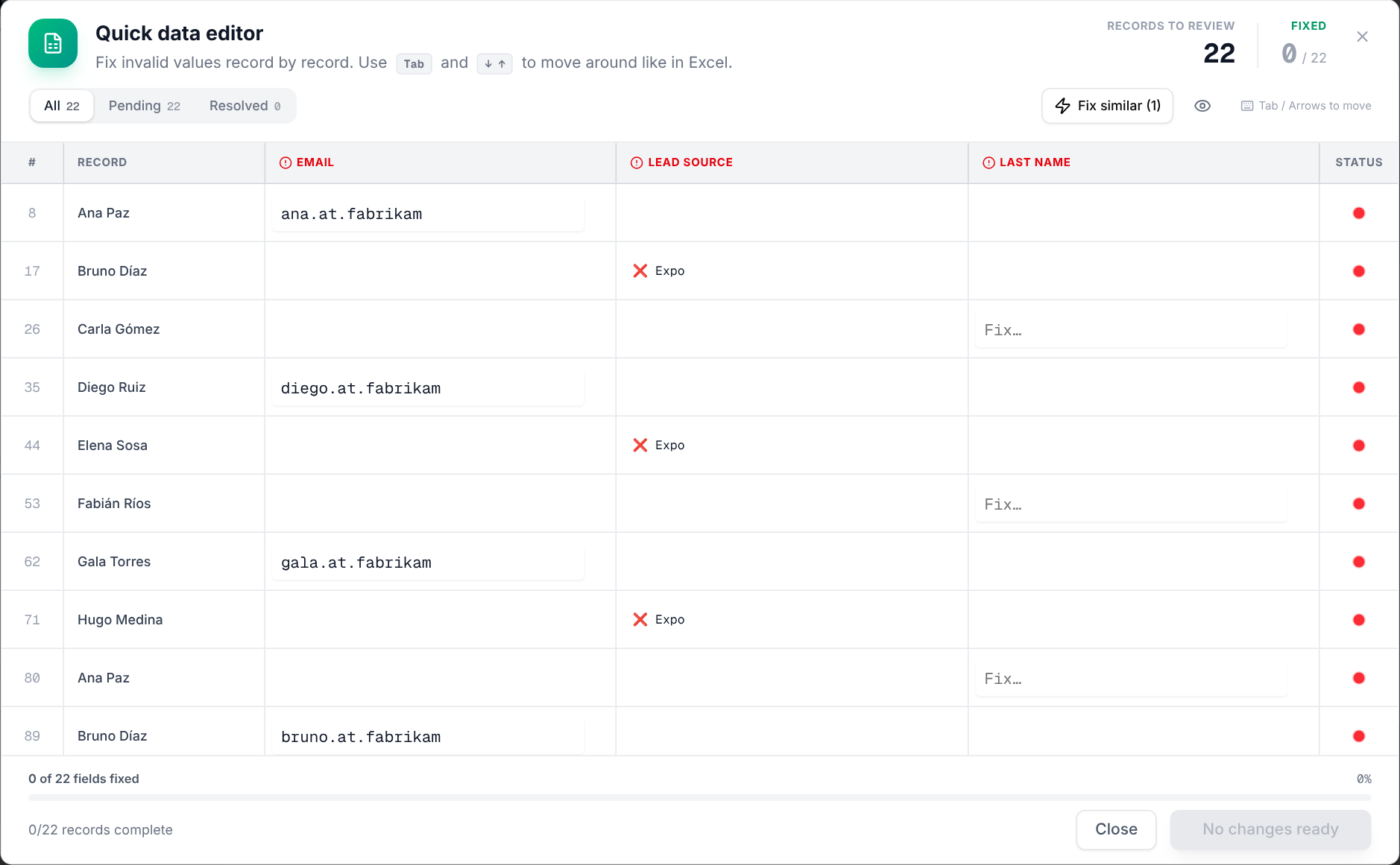
It shows every error with its exact reason, and you fix it right there, in an Excel-like editor, before importing.

ImportToD365 doesn’t make your AI smarter. It guards what it reads.

See the walkthrough
How it works

A quality check between your Excel and your CRM.

Four steps. Nothing is written to Dynamics until the last one, and in the last one only with your confirmation.

01 — Upload

Pick the file and the destination.

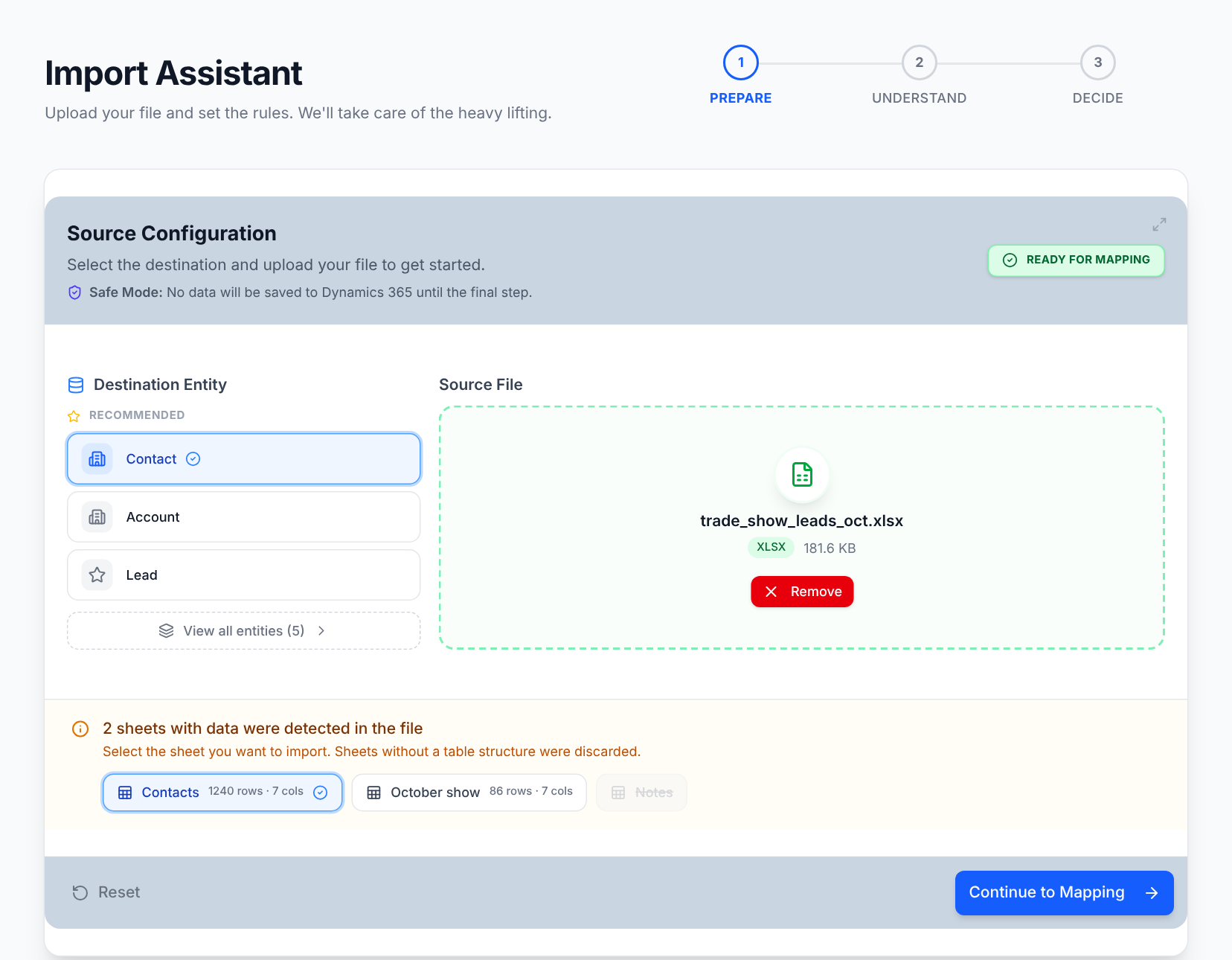
Drag in your Excel or CSV and choose which entity it goes to. If the file has several sheets, we show them so you can pick which one to import.

  • .xlsx, .xls or .csv, up to 50 MB
  • Lead, Contact, Account, Opportunity or Product
  • We show which fields are used to look for duplicates
Prepare step: Contact entity selected and an Excel file with two sheets to choose from
02 — Map

Every column, to its field.

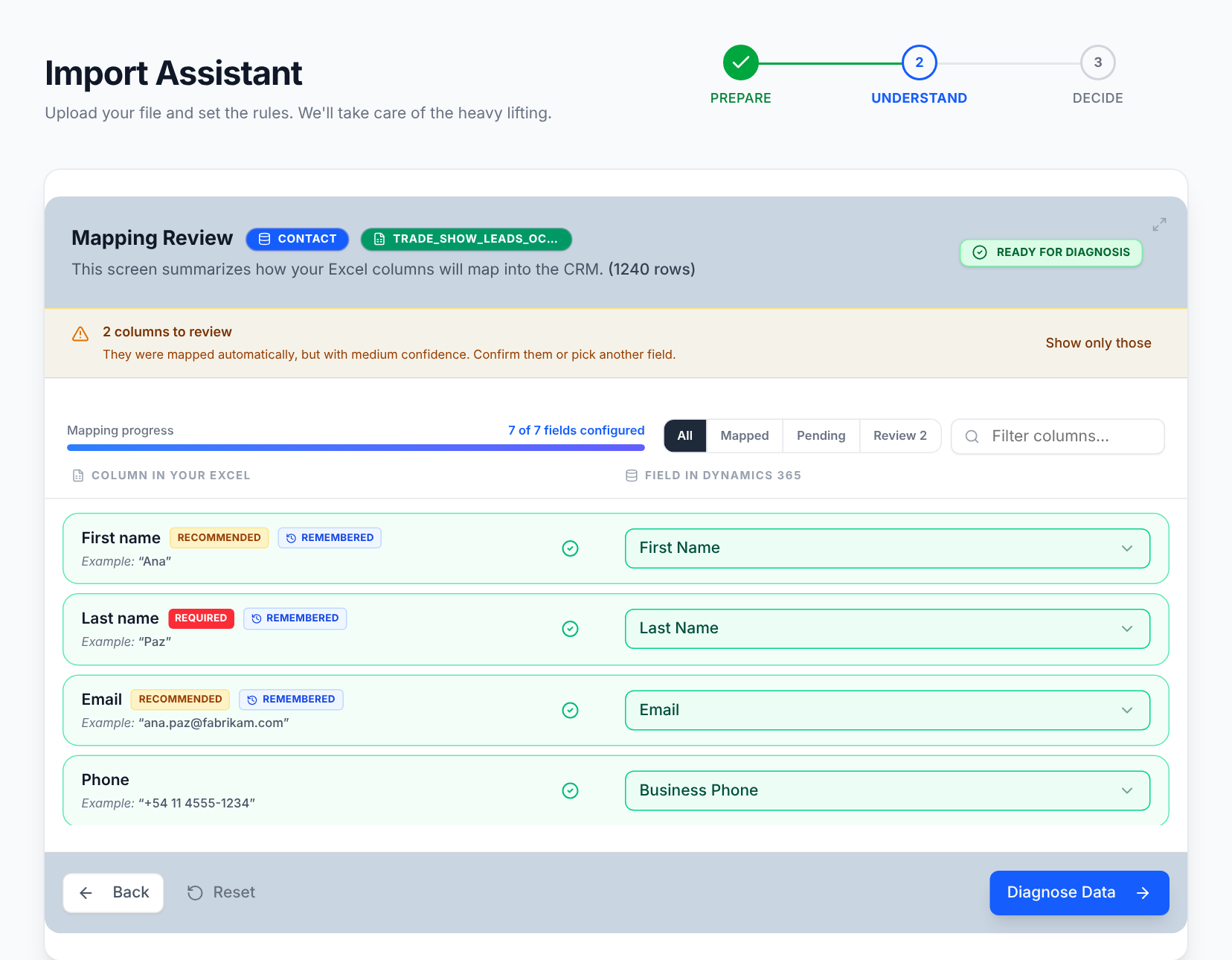
We suggest which Dataverse field each column goes to and tell you how confident each suggestion is. Columns without a clear match are flagged so you decide.

  • You see a real value from your file in every mapping
  • You confirm the required fields are covered
Understand step: mapping review with a confidence level per column
03 — Diagnose

Everything that fails, before writing.

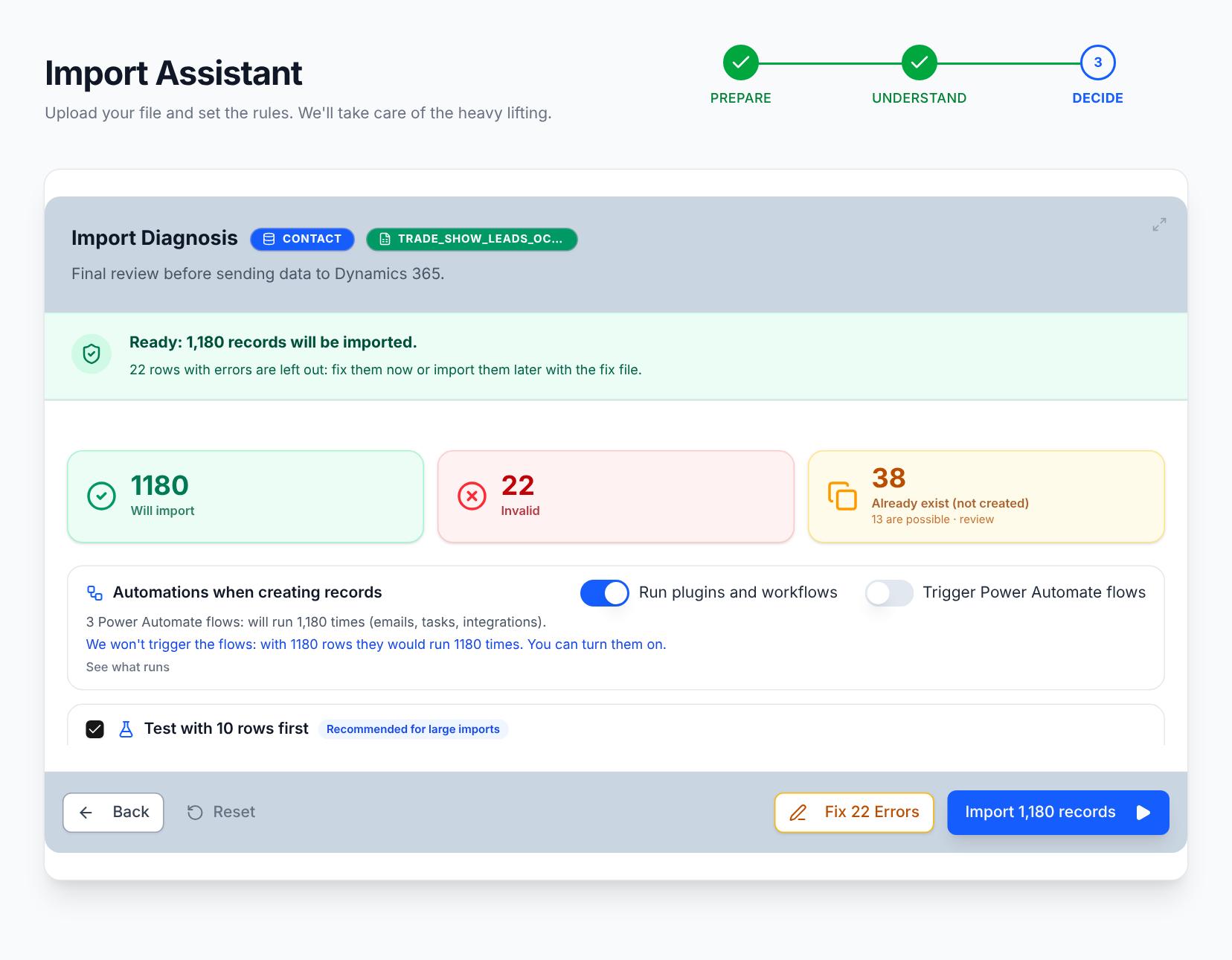
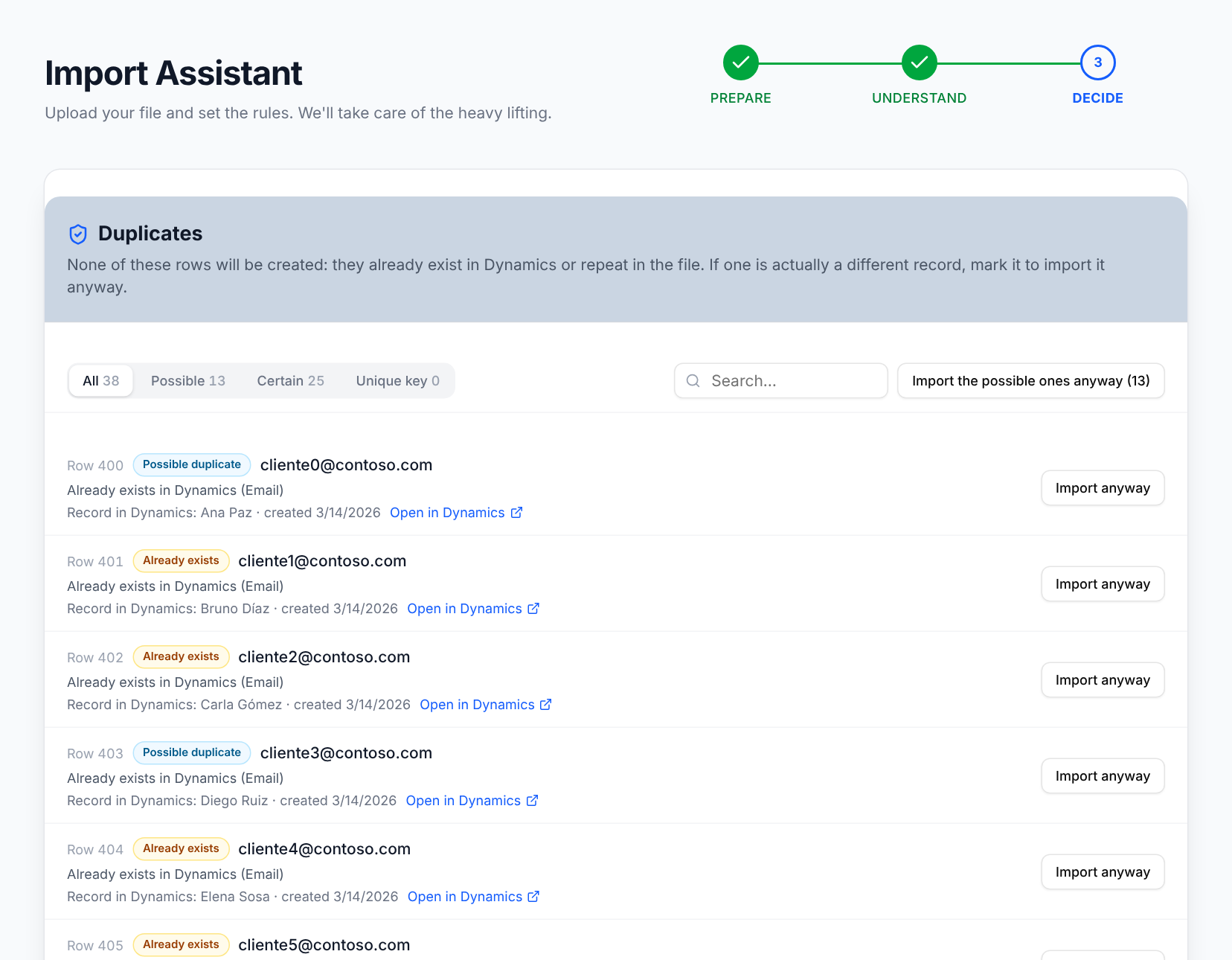
Every invalid record shows the exact reason: format, required field, value outside the list, or an account that doesn’t exist in your CRM. Every possible duplicate appears next to the record that already exists in your Dynamics.

  • You fix inline, moving with Tab and the arrow keys, like in Excel
  • You approve duplicates one at a time or all at once
  • You can download the diagnosis
Import diagnosis: invalid rows, duplicates and the reason per row
Duplicate review: every row next to the record that already exists in Dynamics 365
04 — Import

Only what you approved goes in.

Before writing, we tell you exactly how many new records will be created and in which entity. At the end you download the Excel report, row by row.

  • Only new records are created: existing ones are never modified
  • If the import gets interrupted, it resumes without duplicating rows
  • Invalid rows and duplicates you didn’t approve stay out

See all features in detail →

Append-only, by design

What’s already in your CRM is never touched.

If you’re going to trust your data to AI, you first need to trust how it gets in. These rules aren’t settings you configure: it’s how the tool works.

  • It only creates new records.

    It never updates or deletes what already exists in Dynamics.

  • Nothing is written without your confirmation.

    Before importing, we tell you how many records will be created and in which entity.

  • Anything doubtful stays out.

    Invalid rows and possible duplicates you didn’t approve are not imported.

  • If it’s interrupted, it resumes without duplicating.

    An interrupted import picks up where it left off and skips the rows it already processed.

  • It works with your Dynamics permissions.

    You sign in with your Microsoft account (Entra ID). The tool can’t do anything your user can’t, and it never sees your password.

  • Your report, temporary data.

    You download the Excel report row by row. The import’s records are deleted from our servers after a few days.

Security & architecture in detail →

Who it’s for

For the people who load the data everyone else reads.

Consultants, partners and admins in the Dynamics 365 CE ecosystem.

Implementation consultant

Migrations from another CRM

You migrate leads and contacts from Salesforce, HubSpot or a legacy CRM. You see invalid records, broken lookups and duplicates before a single row is written.

Calculate what it costs you today →
D365 partner

Client data onboarding

Every new client shows up with a different Excel file. The same mapping and diagnosis workflow, project after project.

Calculate what it costs you today →
CRM admin · RevOps

Lead lists and campaigns

Event lists, form fills or purchased lists: only what you approve gets in, and the database your team and your AI rely on stays clean.

Calculate what it costs you today →
Pricing

You pay for the rows that get in right.

No per-user licenses, no environment limits: you only pay for rows successfully written to Dynamics 365.

Free
$0forever

To try the tool with your real data.

  • 500 rows per month
  • Every feature included
  • No credit card
Start free
PacksOne-time payment
$249one-time

$9.96 per 1,000 rows

For a small or mid-size migration.

  • 25,000 rows
  • Valid for 12 months
  • No automatic renewal
Buy pack
ProOngoing use
$149per month

$5.96 per 1,000 rows

For partners and admins who import every month.

  • 25,000 rows per month
  • Subscription per organization, not per user
  • Every feature included
Start with Pro
Custom
Let’s talk

For more than 100,000 rows, special requirements or custom features for your organization.

  • Custom volume
  • Every feature included
  • Direct contact with the team
  • Other entities and custom features
Contact the team

Only rows successfully written to Dynamics 365 count: invalid rows, duplicates you reject and discarded rows don’t use your quota.

We check your quota before we start: we never cut you off in the middle of an import.

All plans: no user or environment limits. Prices in USD.

Pricing in detail: what counts as a row, with examples →

Why these prices

What you already pay another way.

Getting data in shape already has a cost: consulting hours, tools to clean up what went in wrong, or migration services. Here’s how ImportToD365 compares with each.

Less than one consulting hour

One hour of a Dynamics consultant in the US$62–104
Starter Pack · 5,000 rows$79

If it saves you a single hour of cleanup and retries, the pack has paid for itself.

Preventing costs less than cleaning

Deduplication apps for D365, per Plauti£15,000–25,000/year
Pro · 25,000 rows per month$1,788/year

Cleanup tools fix the problem afterwards. ImportToD365 keeps the duplicate from getting in.

A whole migration, without talking to sales

Per-project migration service$149–3,499
Migration Pack · 100,000 rows$599

Self-service, with row-by-row review before anything is written to your CRM.

Protect the investment you already made

Dynamics 365 Sales Enterprise · per user, per month, annual commitment$105
Pro · whole organization, per month$149

For less than the cost of two licenses, you protect the data your whole team and your AI rely on.

Does it pay for itself in your case? Run the numbers with the calculator →

Public third-party prices collected in October 2026; they may change. Sources: Glassdoor · Plauti · MigrateMyCRM · Dynamics 365 Sales pricing.

Comparison

Against what you do today.

The comparison that matters isn’t against another landing page: it’s against the Excel file fixed by hand and the native import that leaves you halfway.

CriterionManual / improvisedD365 native importImportToD365
Clarity before importingLowPartialHigh
Early problem detectionManualLimitedGuided and visible
Error correctionRow by rowLittle contextIn the tool, per record
Duplicate reviewManualBasicField by field against your CRM
TraceabilityScatteredLimitedDownloadable report per import
Existing recordsRisk of overwritingMay overwriteNever modified
Contact

Have a question?

You don’t need to talk to anyone to get started: create your free account and upload your first file. If you need a custom plan, have a technical question or want help, write to us. A person on the team will reply.

Does your process need another entity, a validation of your own or an integration? Tell us: we also build custom solutions.

  • Custom plans for large migrations
  • Security questions before connecting your environment
  • Help with your first import
Frequently asked questions

What consultants and partners ask us.

If your question isn’t here, write to us. A person on the team will reply.

Write to us

Does ImportToD365 use AI?

No, and that’s on purpose. Mapping suggestions compare your column names with Dataverse fields, and validations are rules you can verify: format, required fields, references and possible duplicates. You make every decision. What ImportToD365 does is protect the data your AI reads afterwards.

Does it connect to Copilot or my agents?

No. ImportToD365 works one step earlier: it controls what goes into Dynamics 365 / Dataverse, which is where Copilot, agents and search read from. It doesn’t need to integrate with them.

Does it clean the data I already have in the CRM?

No. ImportToD365 guards what goes in: it doesn’t modify, merge or delete existing records. What it does is use your CRM as the reference, comparing every new row against what you already have so you don’t add duplicates.

What do I need to get started?

A Microsoft account with access to Dynamics 365 / Dataverse online and permission to create records in the entity you’re importing into. Nothing gets installed in your Dynamics: it’s a web app that works with your own permissions.

Can you modify or delete existing data in my CRM?

No. By design, ImportToD365 only creates the new records you approved in the diagnosis. It never updates or deletes existing records. If we detect a possible duplicate, we show it to you side by side and you decide whether it goes in.

How does it detect duplicates?

It uses the duplicate detection rules published in your organization and, if the entity has none, default rules (for example, email or phone for contacts). It compares every row against your live CRM and against the rest of the file, and shows you each match next to the record that already exists so you can decide.

Do my plugins, workflows and Power Automate flows run?

You choose before importing. We show you which automations that entity has and you decide whether they run. On large imports, flows are off by default so you don’t trigger thousands of emails or tasks. Skipping plugins requires your user to have that privilege in Dynamics.

Can I try a few rows before importing everything?

Yes. With a test import we create the first 10 rows and pause: you check them in Dynamics and, if everything looks right, you continue with the rest without duplicating the test rows.

What happens if the connection drops or I close the browser?

The import runs on our servers, not in your browser. If your Microsoft session expires, it pauses on its own and you resume it where it left off, without duplicating rows.

What happens to the rows that fail?

They stay in the report with the exact reason for each one. With “Fix and retry” they go back to the assistant in one click: you fix them and import them without building a new Excel file. Rows already created are not repeated.

Which files does it accept?

Excel (.xlsx or .xls) and CSV, up to 50 MB. If the file has several sheets, you choose which one to import. Starting from scratch? Download a template for the entity from the assistant.

Which entities are supported?

Lead, Contact, Account, Opportunity and Product. Need another entity or a custom feature? Tell us and we’ll look into it.

Can I try it before paying?

Yes. The Free plan includes 500 rows per month, with every feature and no credit card. Questions about packs, Pro and quota are answered in Pricing.

Does it handle sensitive data securely?

You sign in with your Microsoft account (Entra ID) and the tool works with your own Dynamics permissions: it never sees or stores your password. Your data is processed transiently to validate and import. You download your Excel report and, a few days later, the import data is deleted from our servers. The details are in Security & architecture.

Does it work with on-premises environments?

For now only with Dataverse / Dynamics 365 online.